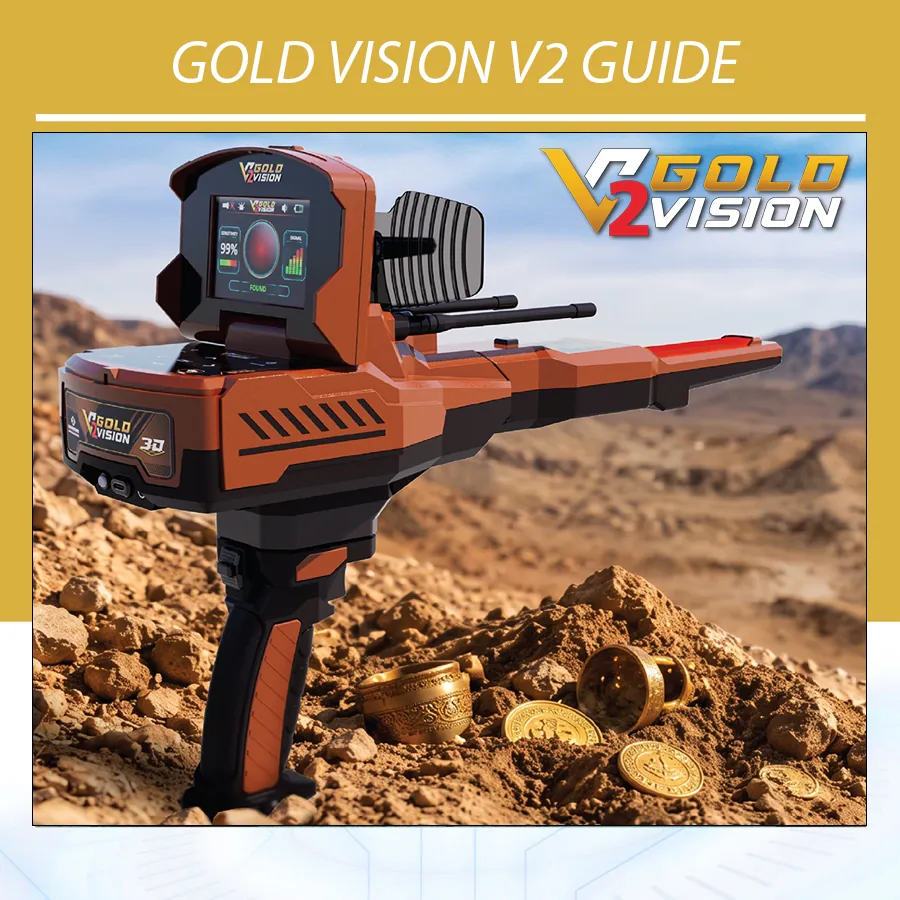
Gold Vision V2 Guide: Systems, Specifications, Use and Price
Explore beyond the surface with Gold Vision V2 guide, Geoground’s seven-system V2-9500 platform. Bring broad-area searching, live response monitoring, structured ground scanning and Android-based 3D analysis into one exploration setup. Move from an initial area of interest to a closer examination with a choice of tools for each stage of your search.
Build your search around the way you work. Gold Vision V2 combines selectable search modes, adjustable settings and visual analysis tools, giving you the flexibility to explore a location and review its responses in greater detail. This guide takes you through its technology, specifications, setup, operating methods, accessories and price enquiries so you can choose your configuration with confidence.
Ready to explore the seven-system configuration? Visit the Gold Vision product page at Orient Detectors and contact our team for a Gold Vision V2-9500 quotation, package details and training options.
What is Gold Vision V2 designed to do?
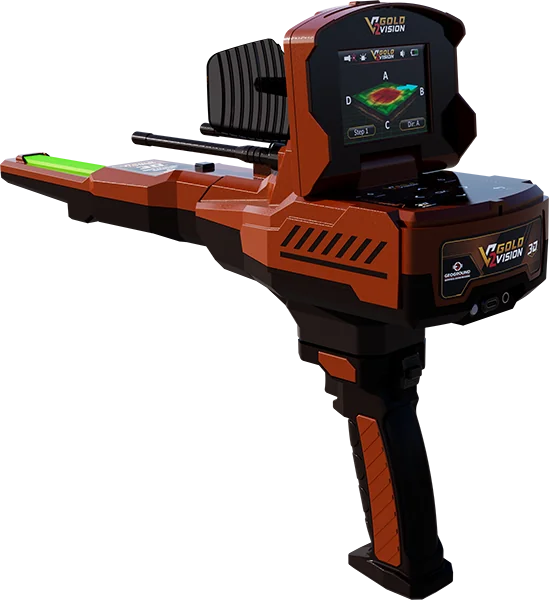
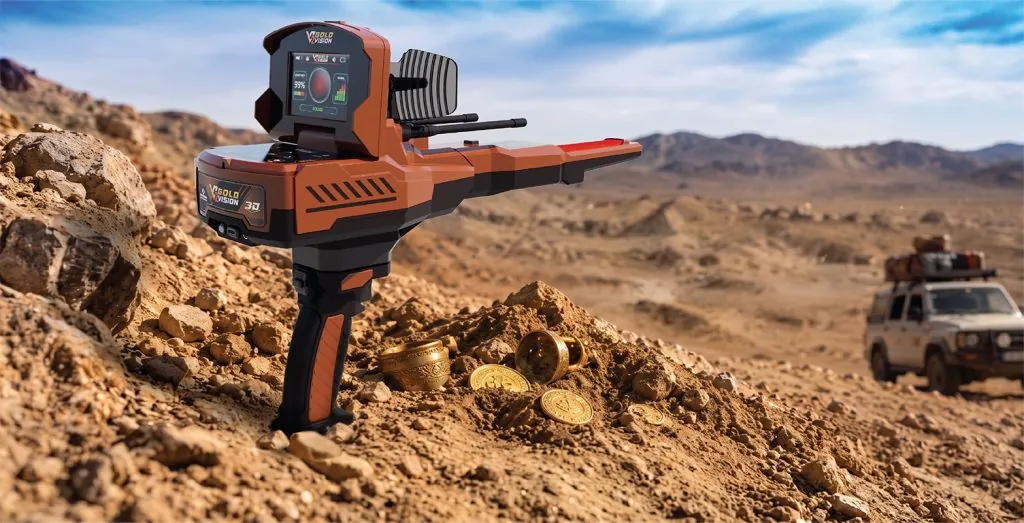
In this Gold Vision V2 guide we explain how the device brings a versatile set of search tools to prospecting, treasure hunting and the investigation of metallic responses, potential cavities and subsurface anomalies. Select a broad-area search mode, monitor changes as you move, or collect a structured ground scan for closer visual analysis. Each system gives you a different way to approach your next stage of exploration.
Create a purposeful field routine: identify an area of interest, mark the response, collect a scan and examine the resulting visualization. Keeping these stages organized makes it easier to compare observations and decide where to concentrate your next examination. Use estimated depths and response categories as guidance within that wider assessment.
For explorers who want to develop their skills across several search methods, Gold Vision V2 offers room to build a complete working routine. Learn calibration, practise steady sensor handling and use saved Android scans to review your progress. A practical demonstration helps you match the available systems to your terrain, experience and preferred style of searching.
Seven systems to expand your exploration options
This Gold Vision V2 guide explain how to bring multiple stages of exploration into one setup with Gold Vision V2. Choose Long-Range Locator for broad-area searching, follow changing responses with Live Scan, and collect a structured ground scan for Android-based 3D analysis. Select the function that fits your location and the next stage of your work.
Adjust target, soil, distance and depth settings, or use Free Mode to enter a frequency manually. Bionic adds a reference-sample calibration approach, while Ionic provides a dedicated numerical and color response scale. Once you have marked an area for further examination, Smart Depth lets you add an approximate depth assessment to your field notes.
Build your working routine one system at a time. Practise calibration and sensor handling, then introduce the functions relevant to your search. Save and reopen scan files to revisit the collected data, compare observations and plan the next examination of your site.
Seven search systems at a glance
| System | Main role | Where to assess the information |
|---|---|---|
| 3D Ground Scan | Structured ground-data collection and 3D visualization | GEOGROUND 3D Analyzer on Android |
| Live Scan | Immediate response monitoring while scanning | Device display |
| Long-Range Locator | Configurable broad-area search | Search screen and directional responses |
| Free Mode | Manual search-frequency configuration | Long-range-style search workflow |
| Bionic | Search preparation using a reference sample | Sensitivity, signal and alert indicators |
| Ionic | Live response indication on a dedicated scale | Device indicator scale |
| Smart Depth | Approximate depth calculation after an area is identified | Calculated result screen |
Choose the system that fits the next step in your search. Use structured ground scanning to examine a pattern across a marked area, Live Scan to follow changes during movement, and Smart Depth to add an approximate depth assessment. A consistent routine gives you a clearer basis for reviewing and comparing your observations.
3D Ground Scan and the Android analysis workflow
The 3D Ground Scan system collects data across a defined area using the GEO Matrix Sensor. GEOGROUND 3D Analyzer processes and displays that information on a compatible Android phone or tablet. This distinction is important: the handheld screen and the Android analysis workspace have different roles.
Set up your scan to suit the area: choose a parallel or zigzag route, select the starting corner and enter the lines and pulses used as sampling steps. This control over the scan layout helps you organize coverage and relate the finished display to the ground you have examined.
Take control of each sampling position with manual recording using the handle’s Start button, or choose automatic recording to reduce repeated button presses. Follow the line-start and line-end controls for your selected mode. Use the approximately 30 cm spacing guidance with the correct grid setup, keeping movement and sensor height consistent throughout the scan.
A useful practice exercise is to mark a manageable training grid, record its orientation and complete the same route carefully. Save the scan before changing parameters. If you later compare files, keep the area and collection method documented so that changes in the image are not confused with changes caused by a different route or inconsistent spacing.
What can you analyze in GEOGROUND 3D Analyzer?
Bring your ground scan into a dedicated visual workspace. GEOGROUND 3D Analyzer provides ground-grid display, wireframe and solid views, result data, approximate depth by grid cell, soil selections, color filters and color themes. Save your files, reopen a previous session and choose the view that best supports your examination.
Use the grid to connect a displayed feature with its location inside the scanned area. Switch between viewing styles, adjust colors and inspect the same data from different perspectives. These controls make it easier to examine the shape and position of a response and compare it with your field notes.
Read the display categories for normal ground, metallic responses and potential cavities alongside the scan pattern and collection conditions. Colors are response indicators; material identification requires further verification. Repeat a promising scan with a consistent route before deciding how to investigate the area.
Live Scan: immediate feedback on the device
See changing responses as you sweep with Live Scan. Dedicated red and blue bars display potential metallic-target and cavity responses, while bar progression shows received signal strength. Immediate visual feedback helps you follow changes across a smaller area and identify positions worth examining more closely.
Calibrate with the device held vertically, then maintain that position while sweeping gently left and right. Use this mode to observe changes as you move through an area. Keep movement deliberate enough to associate a response with a position rather than relying on one sudden deflection during an uneven sweep.
Mark the positions that draw your attention and repeat the sweep with the same sensor position and movement. Then select a manageable area for a closer scan. This practical sequence connects immediate feedback with a more detailed review of the site.
Long-Range Locator: target and terrain settings
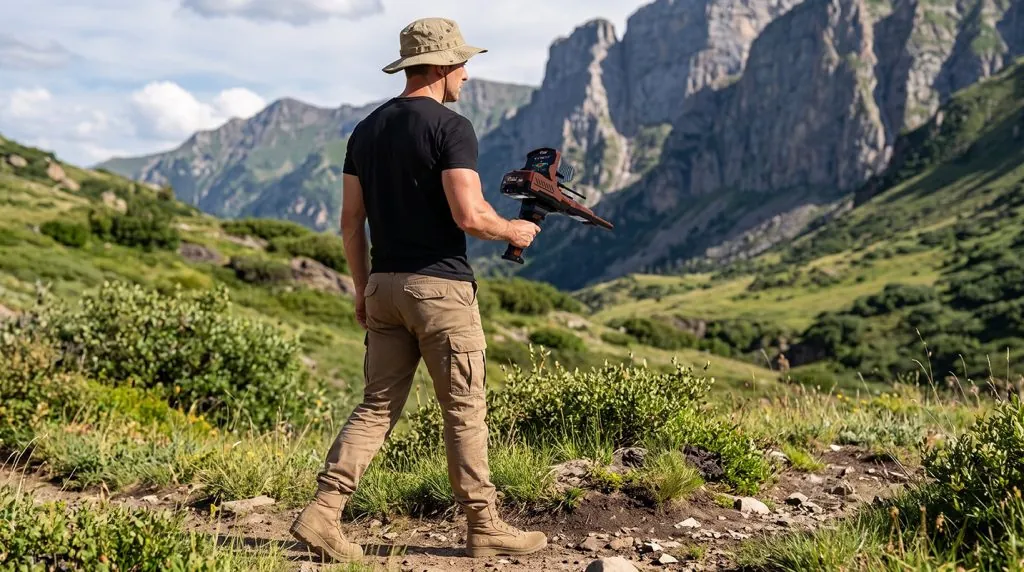
Long-Range Locator provides selectable target type, soil type, search distance and depth settings. The device is held horizontally for this workflow, and the balance indicator helps the operator maintain that position. The manual describes an initial zigzag search followed by directional investigation and marking of a potential area.
Tailor the search setup through eleven target selections: Gold Ore, Gold Treasure, Gold Veins, Silver, Platinum, Bronze, Cavity / Void, Copper, Diamond, Gemstone and Iron. These menu categories let you select the intended search profile; confirm the nature of any response through further investigation.
Eleven soil selections are listed: Low Mineral, High Mineral, Gravel, Forest, Saline, Volcanic, Sandy, Rocky, Wet, Dry and Normal. Choose settings that match the investigation rather than treating the highest distance or depth setting as automatically the best option. Record your configuration so that repeated observations can be compared meaningfully.
Free Mode: custom frequency entry
Put manual frequency control at the center of your setup with Free Mode. Enter a specific frequency and combine it with the available soil, distance and depth settings. This adjustable approach gives experienced operators an alternative to preset target selection and supports a carefully recorded search routine.
During training, explore the frequency settings supported for your model and software version. Record your starting configuration, adjust one parameter at a time and repeat the same route. A consistent method helps you assess the effect of each change and retain useful settings for later comparison.
Bionic and Ionic systems explained
Bionic adds a reference-sample approach to your search options. Align the sensor with the physical sample using the laser, record the reference and complete calibration. Set sensitivity from 1 to 10, then follow the visual and audible response indicators as you proceed through the search.
The circular search animation, signal-strength display and adjustable sensitivity keep operating feedback visible during the session. Use the sample calibration and repeatable handling to organize your observations. The animation represents search activity, while the composition and location of a buried target require separate verification.
Ionic mode uses a scale from 0 to 255, with a neutral midpoint at 128. Red-side indications represent potential metallic targets and blue-side indications represent possible cavities. Calibrate before scanning and use the displayed change as information to assess. Neither the scale nor the color alone confirms an underground structure.
Smart Depth: add an approximate depth assessment
Add another dimension to your site assessment with Smart Depth. After marking an area of interest, collect the required measurements around the selected center and calculate an approximate depth. Carefully marked positions and consistent steps help you make full use of this operating procedure.
Learn the measurement sequence with your trainer using the firmware installed on your device. Confirm the starting point, direction changes, recording controls and return positions, then practise the complete sequence before moving to a new site. This keeps your measurements consistent from one session to the next.
Use Smart Depth alongside your scan observations and field notes when planning further examination. Its result is approximate. Android grid analysis also provides estimated depth information through a separate analysis workflow, giving you another result to review in its proper context.
Gold Vision V2 technical specifications
| Item | Specification |
|---|---|
| Model | V2-9500 |
| Systems | Seven integrated search systems |
| 3D analysis | GEOGROUND 3D Analyzer for Android; Bluetooth connection |
| Display | 3.5-inch TFT LCD HMI with LED backlight |
| Resolution and colors | 480 × 320 pixels; 65,536 colors |
| Memory | SD, 2 GB |
| Audio | Speaker and headset output; 3.5 mm jack |
| Internal speaker | 2 ohms / 3 W |
| Main-unit battery | Three lithium-ion cells, 2000 mAh each |
| Handle battery | One flat lithium-polymer battery; capacity not specified |
| Battery removal | Non-removable |
| Charger | Input 100–220 V AC, 50/60 Hz; output 5 V / 2.5 A |
| Charging | Main unit and handle charged separately via USB-C |
| Additional features | LED illumination, laser pointer and vibration |
| Operating temperature | 0–40 °C |
| Storage temperature | −20–60 °C |
| Package dimensions | 430 × 380 × 160 mm |
| Package weight | 3750 g; not the handheld device-only weight |
| Interface languages | English, German, Spanish, French, Russian, Italian, Arabic, Farsi |
Prepare for your field sessions by reviewing charging and runtime requirements with the sales team. The main unit and wireless handle have separate rechargeable batteries. Ask about operating time for your intended modes and include a demonstration of both charging connections in your equipment handover.
How deep does Gold Vision V2 search?
The Long-Range Locator has manufacturer-stated maximum figures of up to 40 m depth and up to 3000 m front range. These figures apply to that search context and are not guaranteed detection distances. Actual results depend on the target, ground conditions, settings and operating method.
Choose distance and depth settings to match the area you are examining. Front range describes horizontal search coverage, while depth refers to the vertical search setting. During your demonstration, review both controls and ask how the selected configuration fits the terrain and target conditions you expect to encounter.
Assembly, charging and a sensible first session
Keep the equipment powered off and disconnected while assembling. Connect the GEO Matrix Sensor securely, align the wireless handle correctly, then fit the search antennas and Signal Booster Dish when required for the chosen system. Use the manual’s configuration for each mode rather than assuming every accessory is used identically in every workflow.
Charge the main unit and handle separately and follow the red charging indicator as it changes to blue when full. Allow at least six hours for the first charge, following the operating instructions. Use the supplied charger and review normal charging and runtime requirements during your equipment handover.
Choose an open outdoor practice area. Keep another detector or electromagnetic device at least 10 m away and remove metal objects carried by the operator. Set the interface language, brightness and volume, then learn one system at a time. A first session should establish consistent handling and file saving before attempting complex interpretations.
Common mistakes and useful checks
| Observation or mistake | Useful next check |
|---|---|
| Sensor warning | Power down as appropriate and check the external sensor connection |
| Critically low battery alert | Charge the relevant component using the correct connection |
| Android connection difficulty | Check Bluetooth and requested app permissions before repeating connection |
| Distorted or inconsistent scan pattern | Review route, starting corner, spacing, lines and pulses |
| Conflicting repeated observations | Record settings and repeat with a consistent position and technique |
| Depth results vary | Review center marking and the procedure confirmed for the actual unit |
| A color is treated as proof of gold | Reassess it as a response category requiring further investigation |
Keep your equipment ready for the next outing: protect it from impacts, moisture and extreme storage temperatures, and transport it in suitable packaging. Do not immerse the unit or accessories. For recurring faults, share the alert message and operating settings with support and arrange authorized service where needed.
Gold Vision V2 price and what an offer should include
For the Gold Vision V2 price, request a current quotation from Orient Detectors. Specify the seven-system V2-9500 model and your delivery country so the team can confirm the available configuration and total cost. Your quotation should identify the model, included accessories and applicable shipping or import costs.
Request a written quotation naming Gold Vision V2 and V2-9500. It should identify the supplied kit, currency, delivery destination and what the total includes. Ask separately about shipping, taxes or import charges where applicable, training, after-sales arrangements and any optional Android device. Review the written warranty and service arrangements for your package.
Build your package around the main unit, GEO Matrix Sensor, wireless handle, search antennas, Signal Booster Dish, charger, charging cable, user manual and warranty card. Confirm the final contents and quantities in your quotation so you know exactly which equipment will arrive with your order.
Plan your Android analysis setup at the same time as the detector package. Check device compatibility, application access and whether a phone or tablet is included in the offered bundle. Review the written warranty duration, coverage and service arrangements with the team before completing your order.
Questions to ask before deciding
Ask to see the exact system menu, a Live Scan calibration, an Android connection and a saved scan reopened for analysis. If Smart Depth matters to your purchase, request its complete procedure rather than only a result screen. These demonstrations reveal whether the offered setup and training match your intended use.
Tell the team about your preferred search locations, terrain and level of experience. Use the consultation to choose relevant training and see which systems fit your intended work. An equipment demonstration is also an opportunity to practise sensor position, application connection and the sequence you will follow outdoors.
Frequently asked questions
How many search systems does Gold Vision V2 offer?
Gold Vision V2-9500 offers seven search systems, including Live Scan. Specify this model when ordering so your quotation covers the configuration described in this guide.
Is the 3D result displayed only on the handheld screen?
Use GEOGROUND 3D Analyzer on compatible Android equipment. Live Scan provides immediate response indicators directly on the device.
Does it work with an iPhone?
Use a compatible Android phone or tablet for GEOGROUND 3D Analyzer. Confirm your intended device and application requirements with the team before purchase; iPhone compatibility is not confirmed for this workflow.
Is a tablet included?
An Android device is not included in the manual’s package list. A seller could offer a different bundle, so request the exact contents of the quotation.
Can a red response identify gold?
No. Red is a response category in the relevant interface, not independent proof of gold. Assess the observation and any further investigation before identifying the material.
Is Smart Depth an exact measurement?
Smart Depth provides an approximate calculation based on the measurement procedure. Your trainer can demonstrate the complete sequence for the software installed on your unit.
Is it waterproof?
Protect the unit and accessories from water and excessive moisture, and do not immerse them. Follow the operating and storage instructions to keep your equipment ready for use.
How long does the battery last?
Ask the team for operating-time information for your preferred search modes. Charge the main unit and wireless handle separately, and follow the initial charging instructions before your first session.
What is the confirmed Gold Vision V2 price?
Request a current Gold Vision V2-9500 quotation from Orient Detectors. Include your delivery country and preferred accessories so the team can confirm the package and applicable delivery costs.
How can I learn the complete operating sequence?
Request training that covers assembly, system selection, calibration, Android connection, scan recording and saved-file analysis. Practise one mode at a time, then build a routine that connects the systems relevant to your search.
Take the next step with the right configuration
Take your next step in exploration with a platform that brings seven search systems and Android 3D analysis into one setup. Gold Vision V2 gives you a choice of search methods, visual tools and adjustable controls to build your working routine. Match the package to your goals and start with practical training that puts each function in your hands.
Discover the available Gold Vision configuration at Orient Detectors and speak with our team about Gold Vision V2-9500 pricing, accessories and training. Review our buying and shipping information and request an offer tailored to your destination and exploration plans.