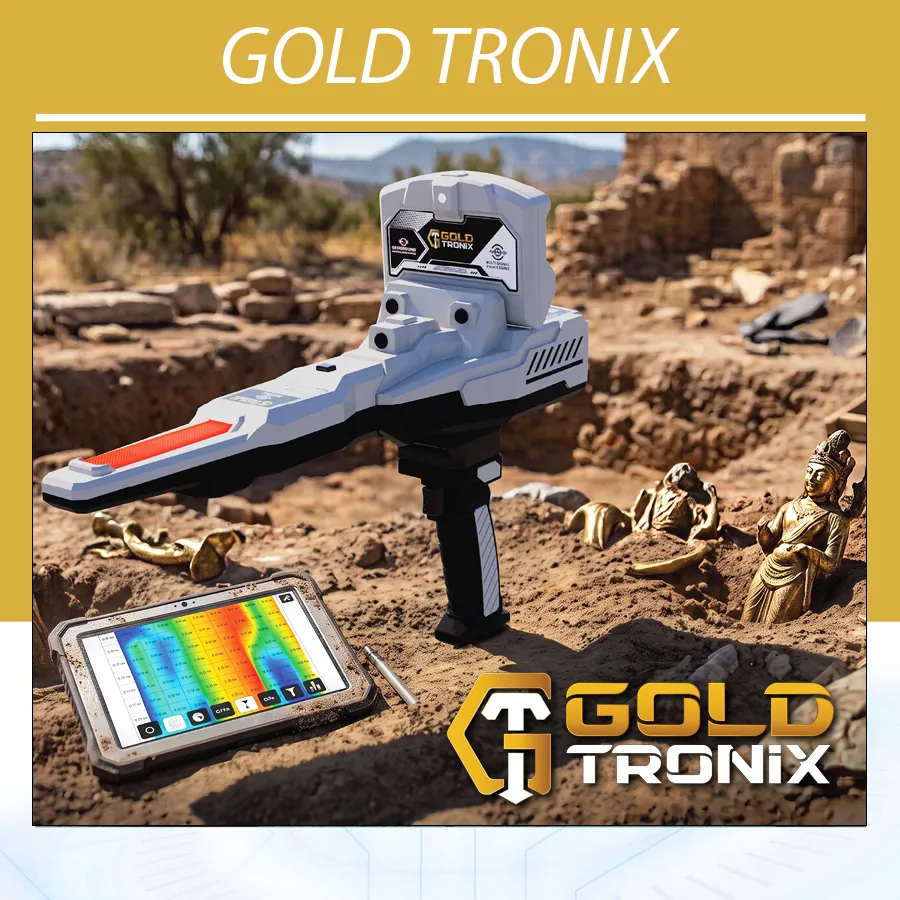
Gold Tronix Guide: 8 Steps to Complete 3D Scanning
Use this Gold Tronix Guide to explore Geoground’s dedicated ground-scanning platform. Combine the immediate feedback of Live Scan with structured 3D Ground Scan collection, then examine your results through GEOGROUND 3D Analyzer on Android. From the first response to a saved scan file, Gold Tronix gives you a focused way to collect and review ground data.
Ready to plan your setup? Contact Orient Detectors about Gold Tronix for current pricing, package details, Android requirements and training. This Gold Tronix Guide explains the systems, specifications, preparation, scanning methods, analysis tools and buying questions.
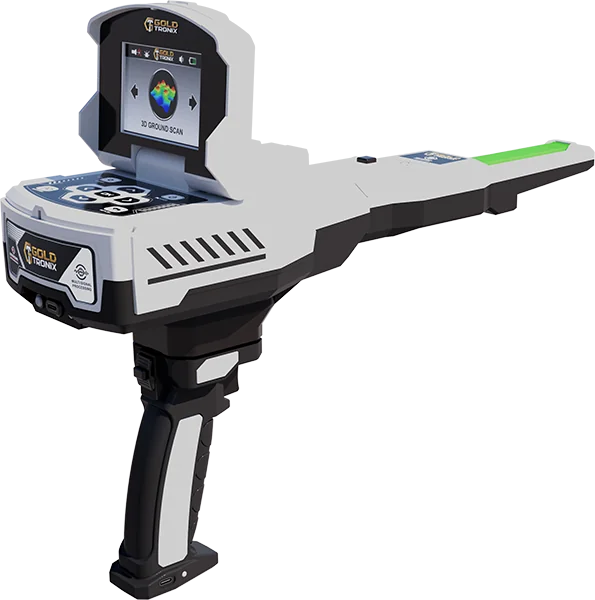
Visit the Gold Tronix product page at Orient Detectors to review the listing and discuss your configuration.
Explore the official Geoground Gold Tronix systems overview alongside the practical workflows below.
What is Gold Tronix designed for?
Gold Tronix is a ground-scanning platform for users who want visual analysis of subsurface responses. It combines the GEO Matrix Sensor, device controls, a wireless handle and Android software in a workflow for collecting data over a defined area. The resulting display helps you examine variations and potential anomalies within that scanned space.
Bring it to outdoor exploration and the investigation of potential buried metallic targets, cavities and ground changes. Its two systems support different stages of that work: Live Scan follows responses during movement, while 3D Ground Scan gathers a set of readings for closer visual review.
For buyers who prefer to study a scan rather than rely on a momentary indicator alone, the ability to save and reopen data is a practical advantage. You can revisit the display, compare views and relate the result to your site notes. Material identification and final site assessment still require appropriate verification.
Gold Tronix Guide to the Two Scanning Systems
| System | What you do | Where you review the response |
|---|---|---|
| 3D Ground Scan | Collect readings along a configured scan grid | GEOGROUND 3D Analyzer on a compatible Android device |
| Live Scan | Move the sensor in the prescribed position and monitor changes | Immediate response indicators on the detector display |
Use Live Scan when you want to follow a changing response in the field. Select 3D Ground Scan when you want to organize readings across a marked area and examine the relationships between them. This focused combination connects immediate observation with a more detailed review of collected data.
3D Ground Scan: turn a marked area into a visual dataset
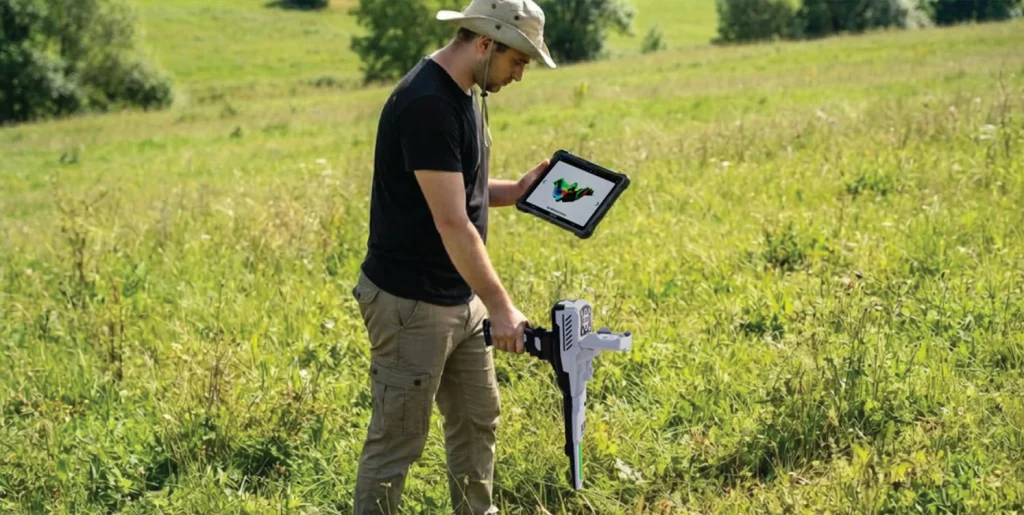
The 3D Ground Scan system collects readings with the GEO Matrix Sensor as you move through a defined pattern. GEOGROUND 3D Analyzer receives the data and builds a visualization on Android. A planned route is central to this process because the software needs the readings in the order and positions represented by your settings.
Begin by marking a manageable area and choosing the starting corner. Decide whether to use parallel lines or a zigzag route, then set the number of lines, sampling positions and recording type. These choices establish the structure of the scan before you press Start Scan.
As you complete the route, maintain consistent movement and spacing. Keep a clear record of the starting point and direction so you can relate a displayed feature to the part of the site that was scanned. A well-organized collection routine makes repeat comparisons more useful.
The 3D display is a visualization of measured data, rather than a photograph of buried objects. Use its shapes, positions and color categories to guide further examination of the area. Assess the pattern alongside the quality of the scan and the conditions under which it was collected.
Connect GEOGROUND 3D Analyzer on Android
The connection workflow in this Gold Tronix Guide uses a compatible Android device with GEOGROUND 3D Analyzer. Open 3D Ground Scan on the detector and keep the connection screen displayed. In the app, search for available devices, select your unit and complete the Bluetooth connection using the requested permissions.
Check that the device moves from its waiting state to the connected state before configuring the scan. The app provides connection controls through its settings and a quick-access connection icon, allowing you to review or end the connection when needed.
Test this sequence during handover using the Android device you intend to take into the field. Ask about the supported operating-system version, app access and any location, storage or Bluetooth permissions required by that version. A successful connection test is a useful part of preparing the complete package.
Gold Tronix Guide to Planning Your Scan Grid
Use the Gold Tronix Guide grid checklist to review five settings: Path, Direction, Type, Lines and Pulse. Learn what each changes before covering a larger area. When you record these settings with the saved file, it is easier to repeat the setup on a later visit.
Parallel or zigzag path
Parallel scanning uses lines travelled in the same direction. Zigzag scanning alternates direction along neighbouring lines. Follow the route you selected and keep the line order consistent throughout the session. Changing the route midway changes how your movement corresponds to the planned grid.
Choose a starting corner that you can mark clearly. Set the Direction option to match that corner and the intended route. Check this before the first line, especially when repeating an earlier scan from a different side of the site.
Lines and sampling positions
Use approximately 30 cm spacing guidance when planning the grid and your steps. In the training example of an area about 3 m by 3 m, the setup uses roughly ten lines and ten sampling steps per line. Practise how your trainer counts the boundaries and sampling positions so the entered numbers match the actual route.
The Pulse setting refers to sampling steps in this collection workflow. Set it to the planned number for each line, then keep the spacing steady. Learn the route on a small marked area before increasing its dimensions or the number of readings.
Manual or automatic recording
Manual mode uses the wireless handle’s Start button at each required sampling step. This gives you control of individual recording points and makes it easier to practise the relationship between movement and data entry.
Automatic mode reduces repeated button presses during a line. You still control the beginning and end of each line with Start and maintain a consistent pace between them. Choose the method that fits your experience, and rehearse the sequence before beginning the saved survey.
Gold Tronix Guide: Your First Scan in 8 Steps
- Mark a small outdoor area and identify the starting corner and line directions.
- Assemble and charge the equipment, then establish the Android connection.
- Select the path, direction, recording type, line count and sampling count.
- Review the complete setup and press Start Scan in the app.
- Follow the selected route with the prescribed sensor position and consistent spacing.
- Use the handle controls according to manual or automatic recording.
- Complete every configured line and wait for the scan-completion message.
- Review the visualization and save the file before making changes for another scan.
Explore the results in GEOGROUND 3D Analyzer
The Gold Tronix Guide analysis workflow starts by reopening your saved survey in the app. Display the ground grid, switch between wireframe and solid views, reset the drawing view and open the result data. These tools help you examine the same dataset from different perspectives.
Use the grid to relate a feature to its position inside the scanned area. Review the shape and continuity of a response, then compare those observations with the route and field notes. Changing a display option changes the way you inspect the data, rather than establishing a new field measurement.
Approximate depth by grid cell
Inspect estimated depth values associated with individual grid cells as part of your interpretation. Read them alongside the collection settings and ground conditions, and compare repeat scans carried out with a consistent method. These are approximate values rather than guaranteed excavation depths.
Soil selections and color controls
Select the relevant soil option, adjust color themes and hide selected colors when examining a saved model. These controls let you focus on a portion of the visualization while retaining the original survey for further review.
Color categories distinguish normal ground, metallic responses and potential cavities. A color alone does not establish gold, silver or a particular underground structure. Look for a repeatable pattern and use suitable verification before identifying the cause.
Save and reopen your work
Keep completed scans in the Files section and reopen them for analysis. Use descriptive names and accompanying notes so you can identify the location and settings later. If you need to share or back up files, ask the team to demonstrate the options supported by the installed app version.
Live Scan: immediate feedback on the detector
Use the Live Scan section of this Gold Tronix Guide to follow responses before completing a grid. Live Scan shows separate bars for potential metallic targets and potential cavities directly on the device display. The metallic-target indicator is red, and the cavity indicator is blue; the bars change with received signal strength.
Select Live Scan, hold the device fully vertical and press Start to calibrate. Wait for calibration to finish, then maintain that vertical position while sweeping gently left and right. A deliberate pace helps you associate a display change with a location rather than a sudden movement.
Mark the positions you want to revisit and repeat the sweep with the same handling. You can then select a suitable area for structured 3D collection. The live bars and Android model have different roles, so learn both displays during your demonstration.
How to improve consistency between scans
The repeat-scan method in this Gold Tronix Guide starts with a clear boundary, starting point and route. Keep the chosen line and sampling spacing steady, and avoid changing the collection pattern halfway through. Before repeating a scan, confirm that the app settings still match the marked area.
Start with repeatable practice rather than a large grid. Compare files made with the same method, then document any deliberate change in direction or configuration. This makes it easier to investigate why a pattern changed and discuss the result with support.
Work outdoors away from nearby metal and competing equipment. Keep another detector or electromagnetic device at least 10 m away and remove carried metal that could influence the session. Use the correct calibration and sensor position for the selected system.
Gold Tronix Guide: Technical Specifications
| Item | Specification |
|---|---|
| Brand and product | Geoground Gold Tronix |
| Search systems | 3D Ground Scan and Live Scan |
| Sensor and operating controls | GEO Matrix Sensor, keypad and wireless handle |
| 3D analysis platform | GEOGROUND 3D Analyzer for Android |
| App connection | Bluetooth |
| Scan route | Parallel or zigzag; selectable starting corner |
| Collection settings | Lines, pulses and manual/automatic recording |
| Analysis tools | 3D views, ground grid, result data and approximate grid-cell depth |
| Live feedback | Separate metallic-target and cavity response bars |
| Display | 3.5-inch TFT LCD HMI with LED backlight |
| Resolution and colors | 480 × 320 pixels; 65,536 colors |
| Memory | SD, 2 GB |
| Audio | Internal speaker and 3.5 mm headset output |
| Internal speaker | 2 ohms / 3 W |
| Main-unit battery | Three lithium-ion cells, 2000 mAh per cell |
| Wireless-handle battery | Internal flat lithium-polymer battery |
| Removable batteries | No |
| Charger input | 100–220 V AC, 50/60 Hz |
| Charger output | 5 V / 2.5 A |
| Charging | USB-C; main unit and handle charged separately |
| Additional features | LED illumination and vibration |
| Operating temperature | 0–40 °C |
| Storage temperature | −20–60 °C |
| Package dimensions | 430 × 380 × 160 mm |
| Package weight | 3750 g for the package |
| Device languages | English, German, Spanish, French, Russian, Italian, Arabic, Farsi |
Check phone or tablet compatibility, app access and battery runtime with the sales team when planning the package. Package measurements describe transport dimensions and weight; request device-only handling information if it is important for your intended use.
Depth capability and the questions worth asking
Choose Gold Tronix around its scanning and analysis workflow, and ask for a demonstration under stated target and ground conditions. A useful discussion covers the target’s characteristics, collection setup, repeatability and method of checking the result.
Request any maximum-depth specification in writing for Gold Tronix and the intended system. An approximate depth value inside the app does not establish a universal maximum detection depth. Keep performance expectations connected to the target, site, calibration and scan quality.
Charging, controls and field preparation
With the equipment powered off and disconnected from charging, seat the GEO Matrix Sensor securely and align the wireless handle with its mounting points. Check that the components are fitted correctly before switching on. Use the assembly sequence demonstrated for your device.
Charge the main unit and handle separately through USB-C. Indicators are red while charging and blue when fully charged. Allow at least six hours for the first charge following the operating instructions; ask about normal charging time and operating hours for your preferred modes.
Set your interface language, brightness and volume before leaving for the site. The device offers eight languages, including English and Arabic, and the app also provides multilingual settings. Check battery status, Bluetooth readiness and the ability to save and reopen a practice file.
Common issues and first checks
| Issue | What to review |
|---|---|
| App does not connect | Bluetooth, requested permissions, selected device and detector connection screen |
| Connection drops | Battery levels and connection status; restore the link before collecting more data |
| Sensor alert appears | Sensor attachment and external connection |
| Handle is not ready | Separate handle charging and the demonstrated control sequence |
| Grid looks distorted | Starting corner, path, line order, sample count and spacing |
| Live response changes abruptly | Vertical sensor position, calibration and sweep consistency |
| Depth estimates vary | Collection settings, soil selection and repeat-scan method |
| Earlier scan is hard to locate | File naming and the app’s saved Files list |
Protect the equipment from impacts, excess humidity and temperatures outside its specified limits. Do not immerse the device or accessories. For recurring faults, provide support with the alert message, software details and session settings, and arrange authorized service where required.
Package contents and Android setup
Review a package covering the main unit, GEO Matrix Sensor, wireless handle, charger, charging cable, user manual and warranty card. Confirm the final contents and quantities in the written quotation and ask to see the equipment assembled during handover.
Plan the Android device at the same time. Check whether a compatible phone or tablet is part of the offered bundle or supplied separately, and have the team demonstrate installation, connection and file handling. Include app access and any required activation details in the discussion.
Gold Tronix Guide: Price and Package Questions
For the Gold Tronix price, request a current quotation from Orient Detectors. Include the delivery country and whether you need a compatible Android device or additional training. This lets you assess the complete setup rather than the detector alone.
Ask for the currency, quotation validity, final kit, availability and expected dispatch timing. Confirm whether shipping, insurance, taxes and import charges are included or payable separately. Review the buying and shipping information alongside the terms applying to your order.
A demonstration that prepares you to use the device
Ask to complete a Live Scan calibration and read both response bars. Then connect the Android app, configure a small grid, record a scan, save it and reopen it. Explore wireframe and solid views, color controls and approximate grid-cell depths using the same saved dataset.
Practise manual and automatic recording so you understand their different button sequences. Tell the trainer about your intended terrain and experience, and ask how to document the route and repeat a survey. A complete working exercise is a useful foundation for your first independent session.
Frequently asked questions
Who is this Gold Tronix Guide for?
Buyers and operators learning structured ground scanning, Android analysis and live response monitoring. The device combines 3D Ground Scan with Live Scan.
Do I need Android for 3D analysis?
Yes. Use a compatible Android phone or tablet with GEOGROUND 3D Analyzer. Confirm your intended device and app requirements before ordering.
Can I use an iPhone instead?
Plan around the supported Android workflow. iPhone compatibility is not confirmed here; discuss your phone requirements before selecting the package.
Is a tablet included?
Confirm the exact bundle in the quotation. A phone or tablet may need to be supplied separately, so include it in your price enquiry.
What is the difference between Live Scan and a 3D scan?
Live Scan follows changing responses on the detector as you move. A 3D scan collects readings across a configured area for visualization and review through the app.
Does automatic recording remove all Start-button actions?
No. It reduces per-step recording actions, but Start is still used at line beginnings and endings. Practise the sequence for the selected mode.
Can I save scans for later review?
Yes. Save the completed survey and reopen it through the app’s Files section. Keep descriptive names and site notes for easier comparison.
Does a red area prove that gold is present?
Red is a response category in the relevant display. Identifying the material requires further verification; color alone does not establish gold or its purity.
Is Gold Tronix suitable for underwater scanning?
Do not immerse the device or accessories. Protect the equipment from water and excessive humidity and follow the operating instructions.
What should I ask about depth and battery life?
Request Gold Tronix-specific performance information for the intended conditions and operating-time details for your selected modes. Treat displayed depth as approximate and charge the main unit and handle separately.
Bring a visual perspective to your next search
Keep this Gold Tronix Guide available while practising immediate observation and structured ground-data collection. Gold Tronix gives you two focused scanning systems, adjustable collection settings and Android analysis tools for building a repeatable exploration routine.
Speak with Orient Detectors about Gold Tronix to discuss pricing, accessories, Android setup and training. Choose a clearly specified package and start with a practical demonstration that connects the first live response to a saved 3D scan.